ทำครั้งเดียวประมาณ 5 นาที ไม่ต้องเช่า VPS ไม่ต้องเปิดคอมทิ้งไว้ EA ทำงานบนคลาวด์ให้ 24 ชม.About 5 minutes, once. No VPS, no computer left on — your EA trades in the cloud 24/7.
หน้าจอจริงจาก Cloud Trading ทุกเมนูReal screens from every part of Cloud Trading

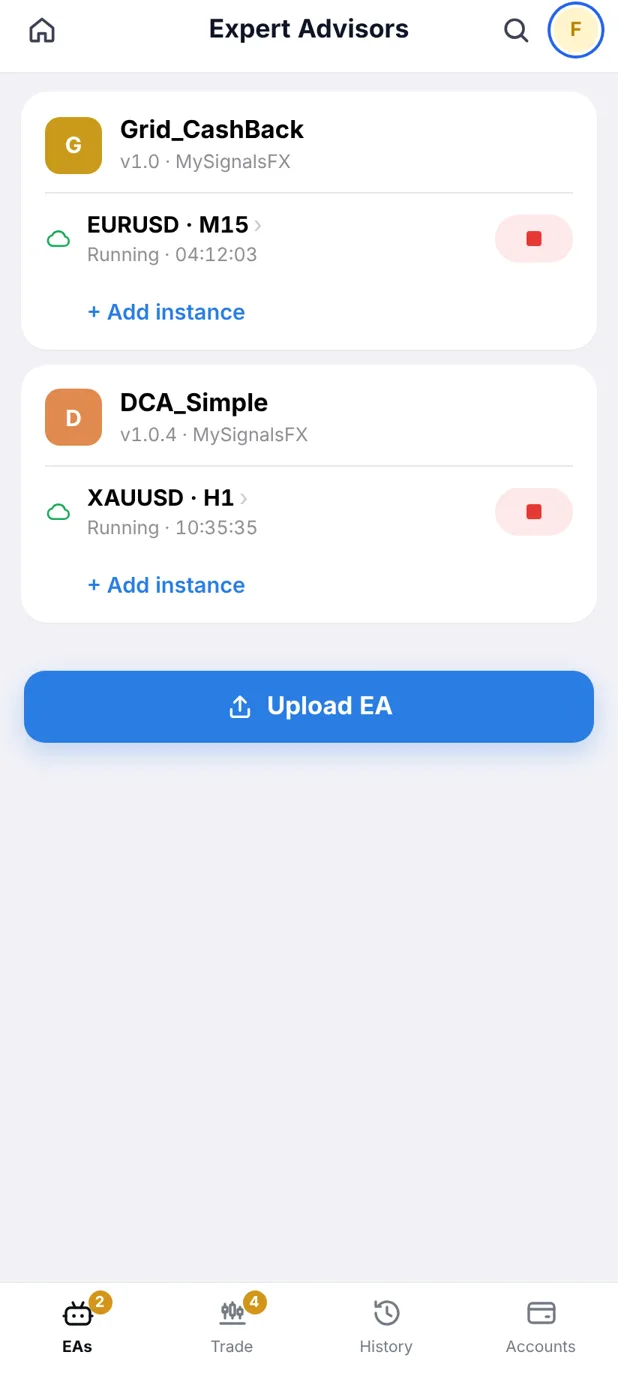
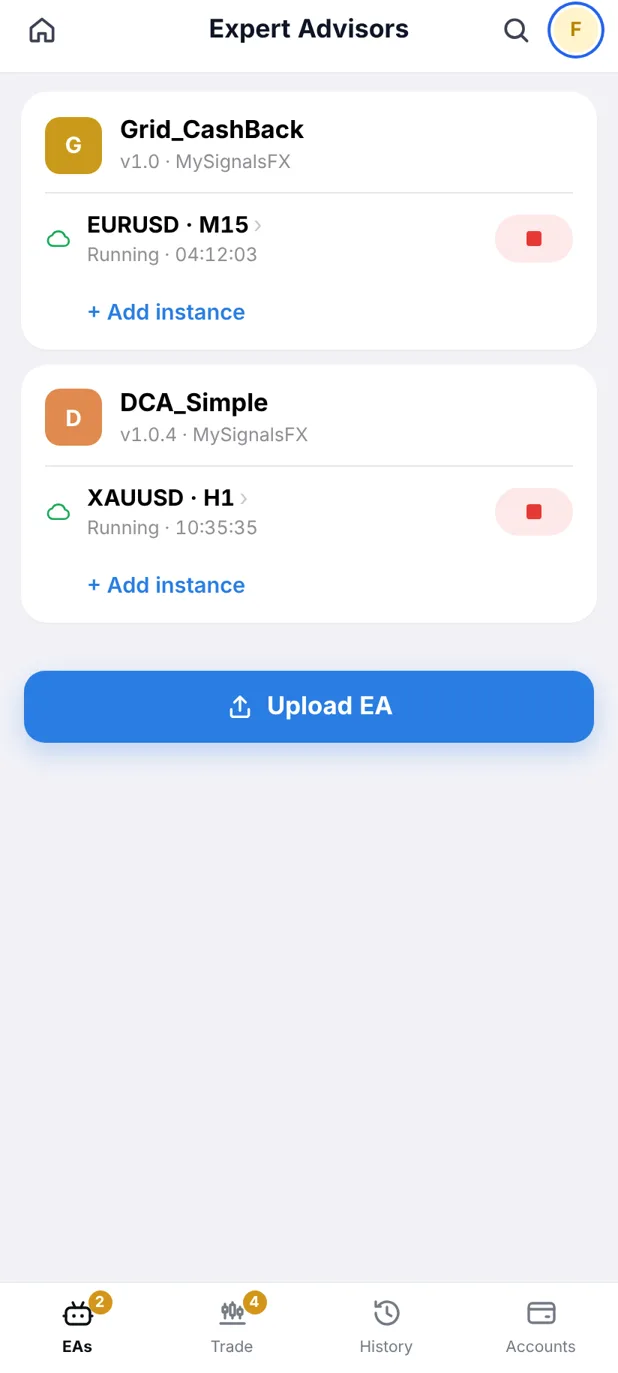
EA ทั้งหมดในที่เดียว · หยุด/เริ่มได้ทันทีAll your EAs · stop or start in a tap

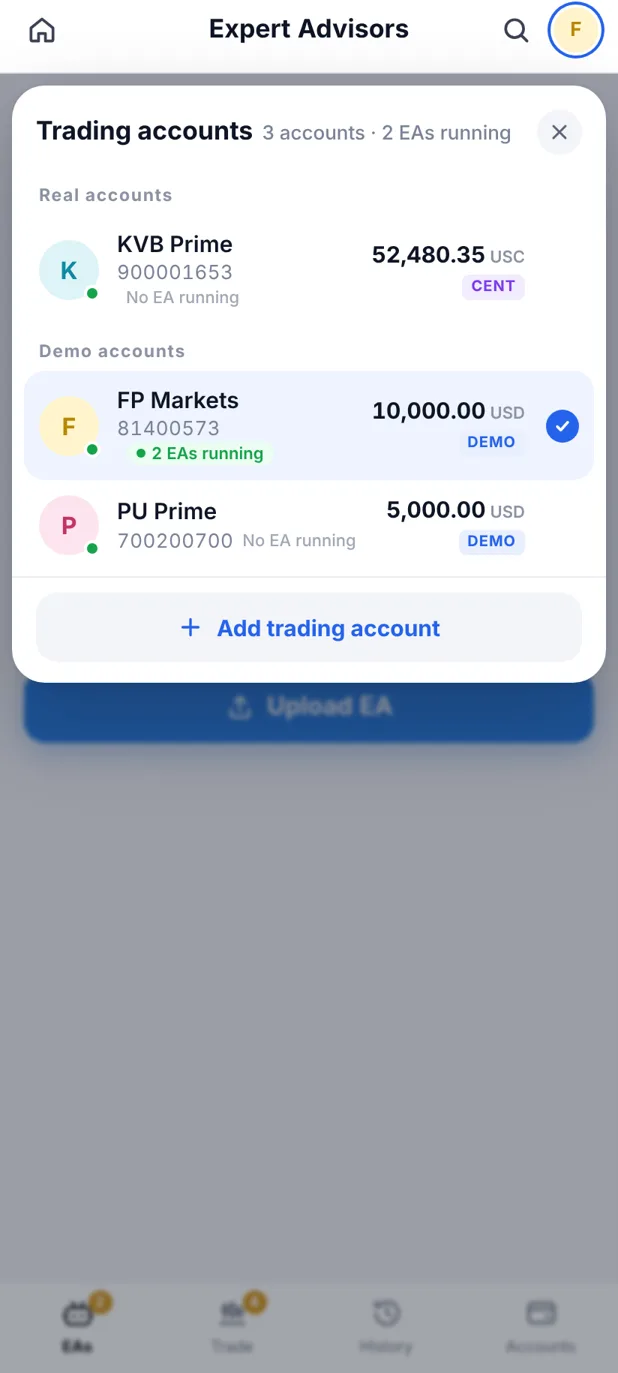
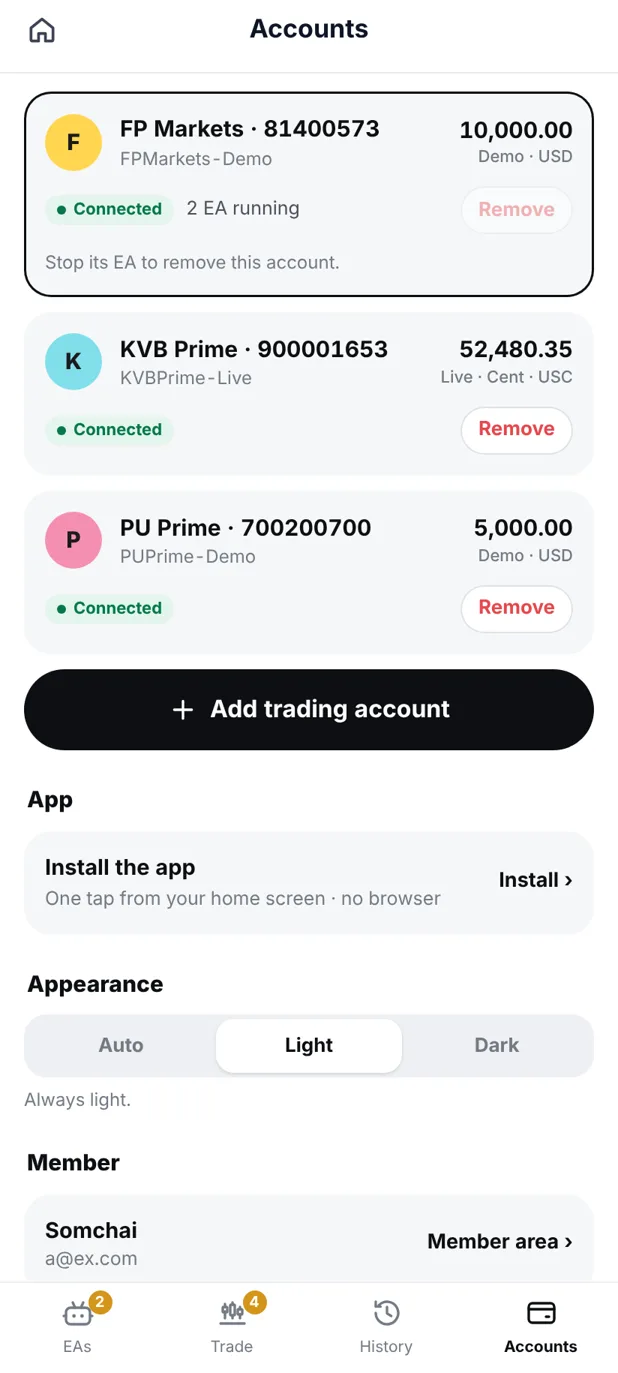
แตะเดียวสลับบัญชี · เห็นว่ารัน EA กี่ตัวSwitch accounts · see what runs where

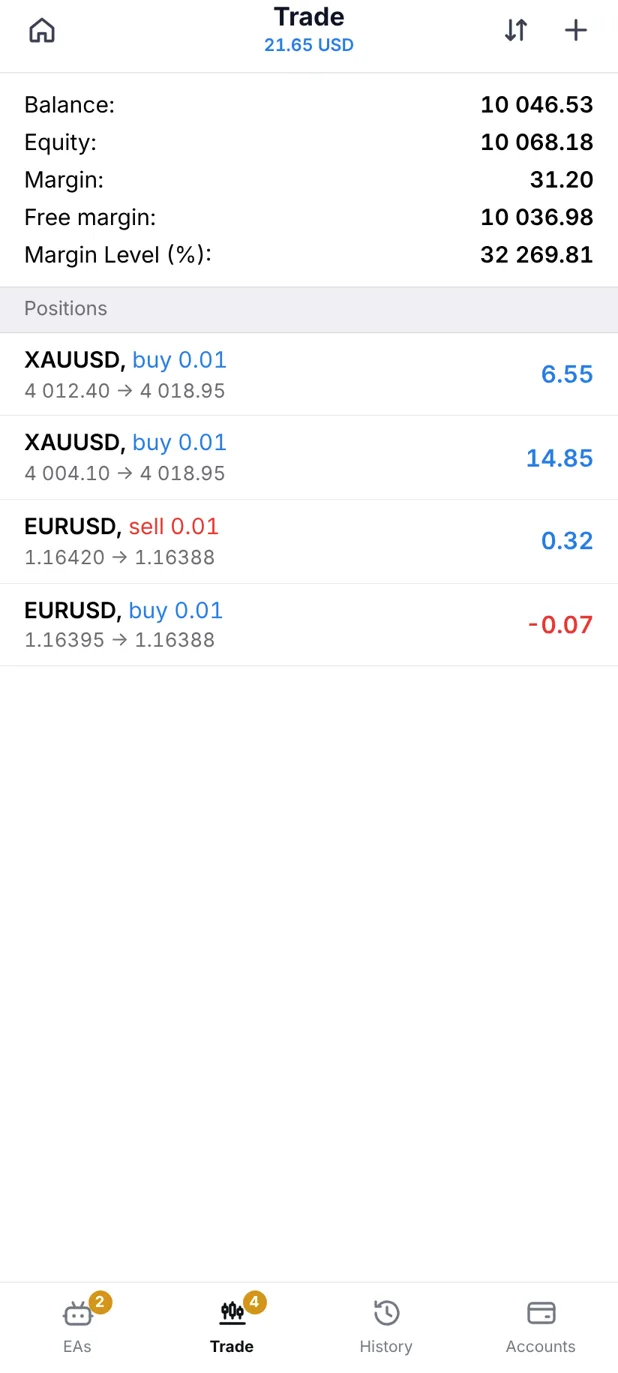
ออเดอร์ที่เปิดอยู่ + ยอดบัญชีแบบสดOpen positions and live balance

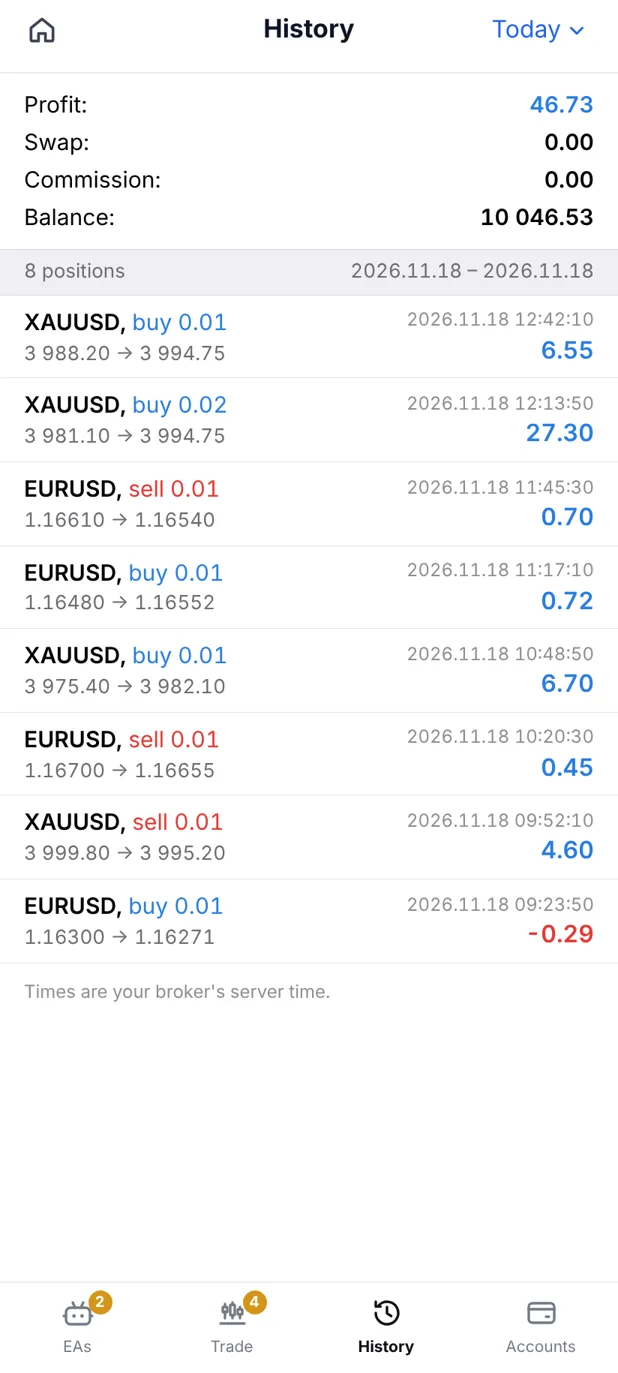
ประวัติเทรดย้อนหลังแบบ MT5Trade history, MT5-style

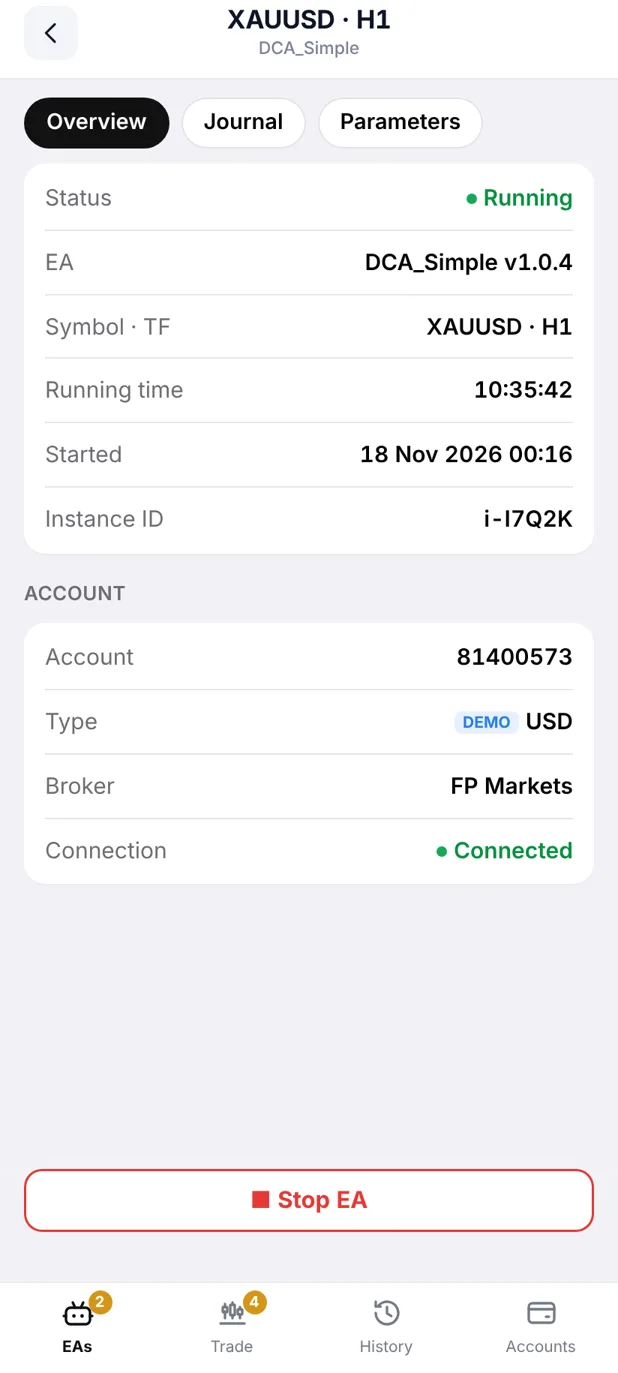
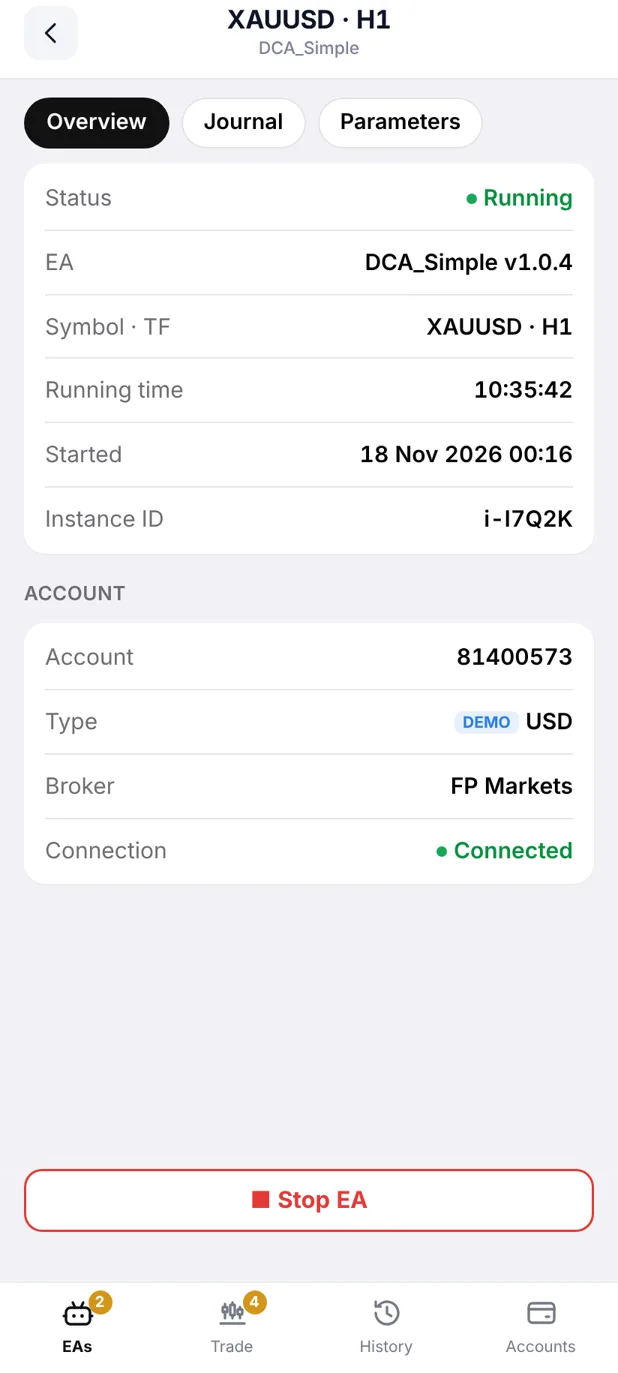
สถานะ EA · บัญชี · การเชื่อมต่อEA status, account and connection

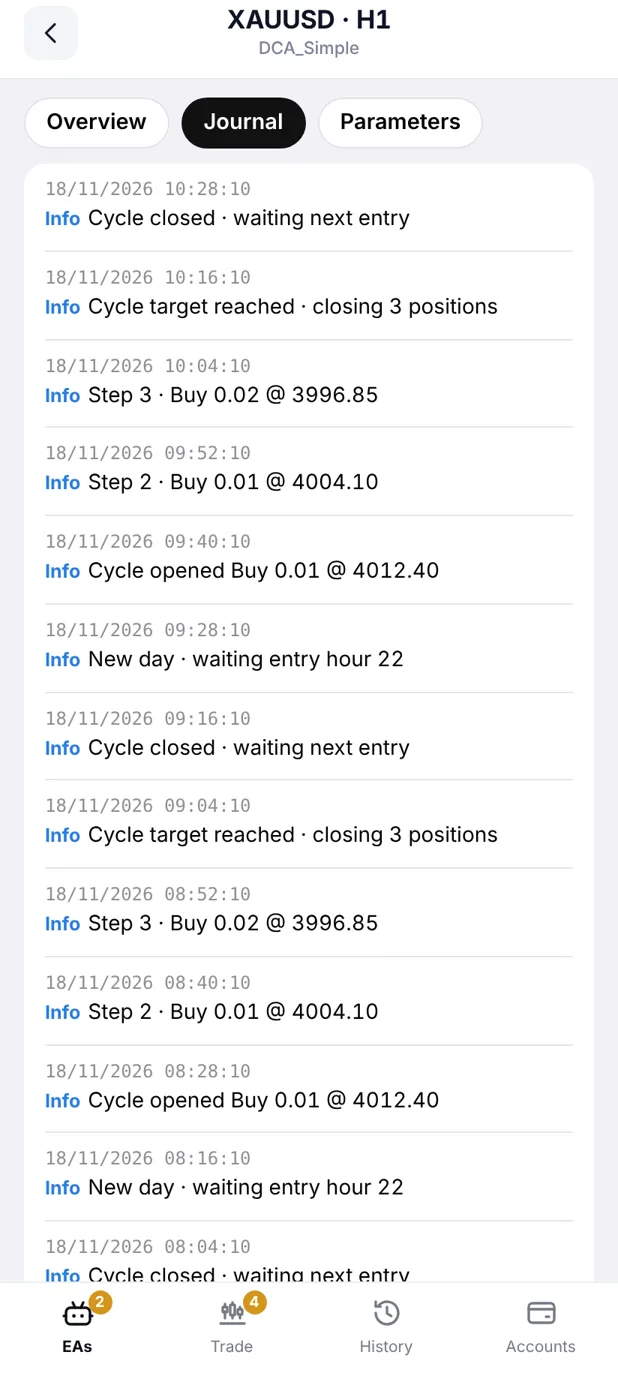
ทุกการทำงานของ EA ตรวจย้อนได้Every EA action, on record

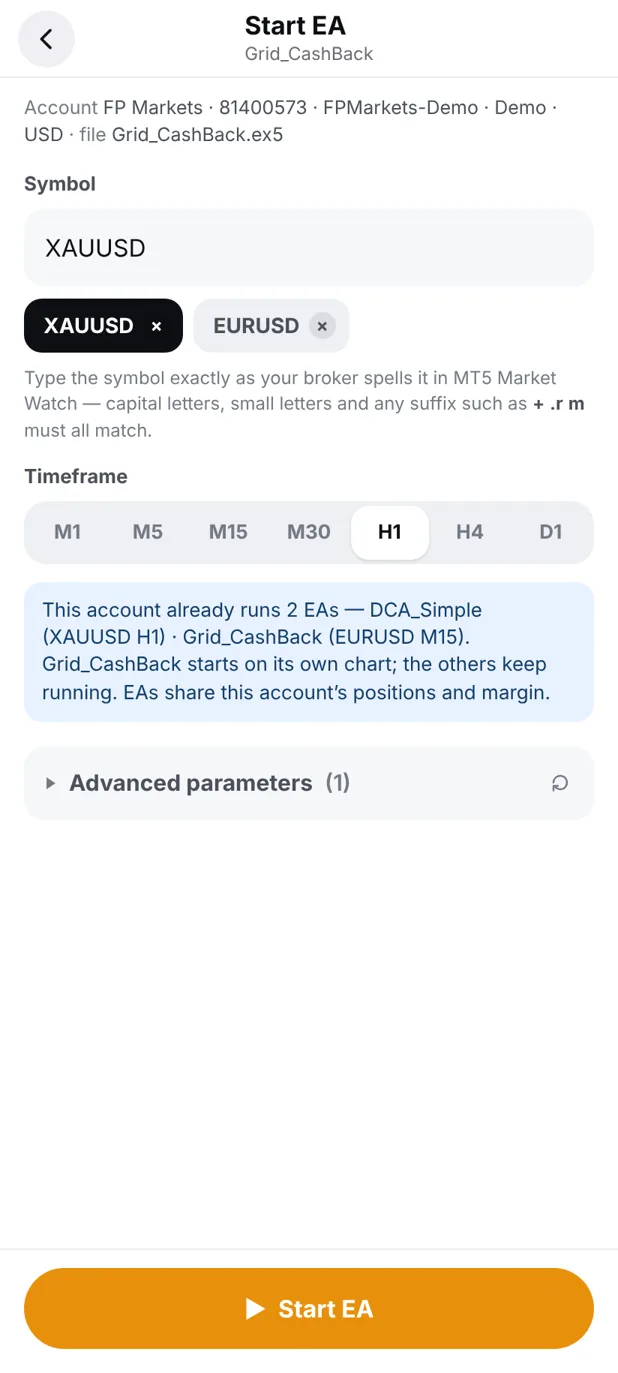
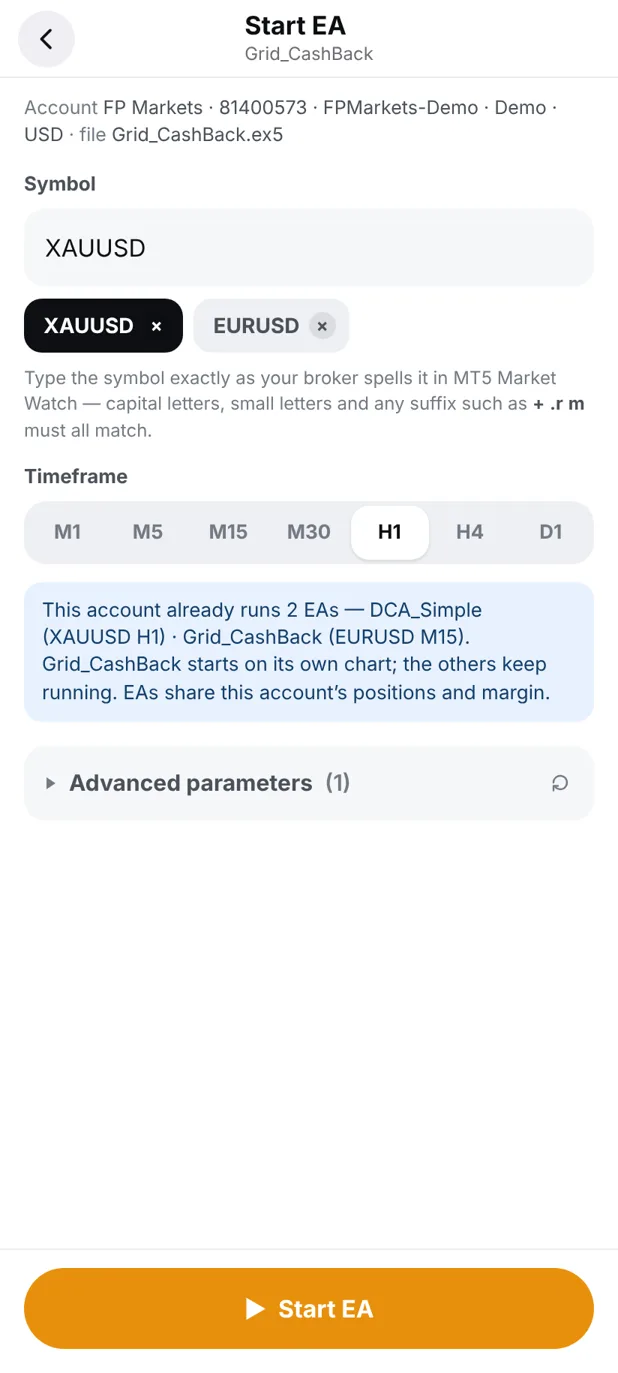
เลือกสินค้า · TF · กด StartPick symbol and timeframe, tap Start

หลายบัญชี หลายโบรก · ธีมมืด/สว่างMany accounts and brokers · dark or light
เลื่อนดูหน้าจออื่น ← →Swipe or use the arrows ← →
เลื่อนลงทีละขั้น · วงสีส้มบนจอคือปุ่มที่ต้องแตะScroll step by step · the orange ring shows what to tap
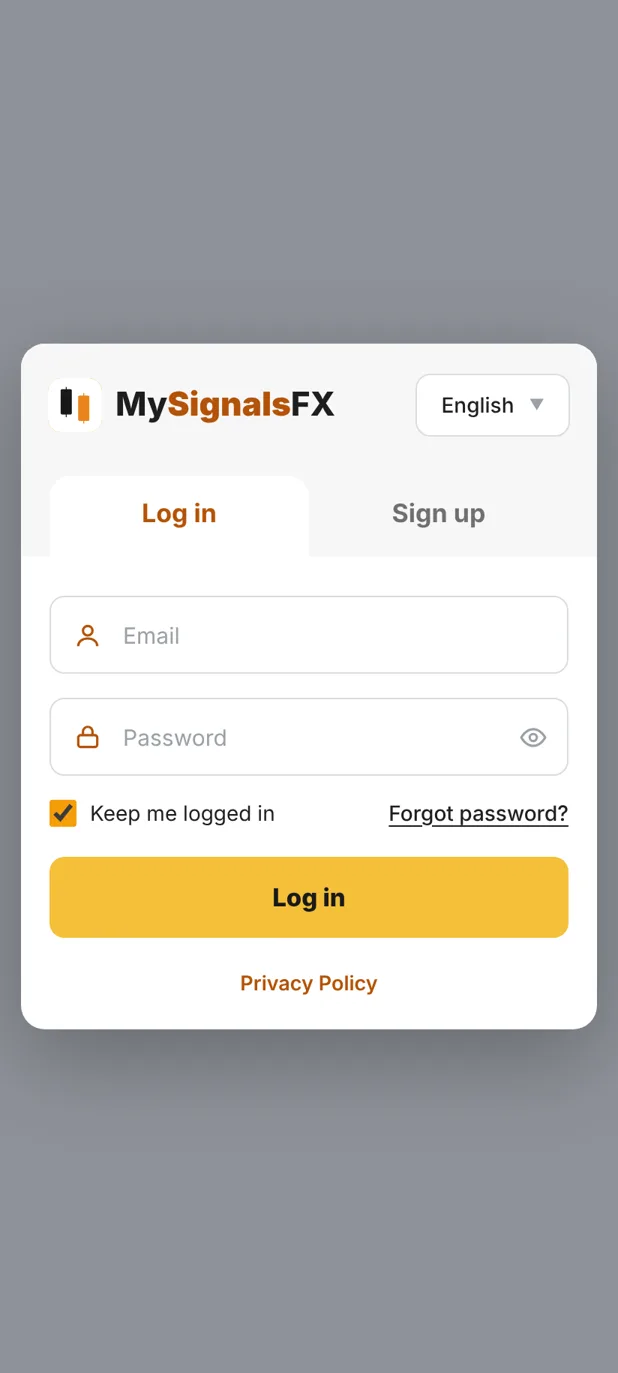
เข้า mysignalsfx.com แล้วแตะ Sign up หรือเข้าด้วยบัญชี Google · มีบัญชีอยู่แล้วแตะ Log inOpen mysignalsfx.com and tap Sign up, or continue with Google. Already a member? Tap Log in.

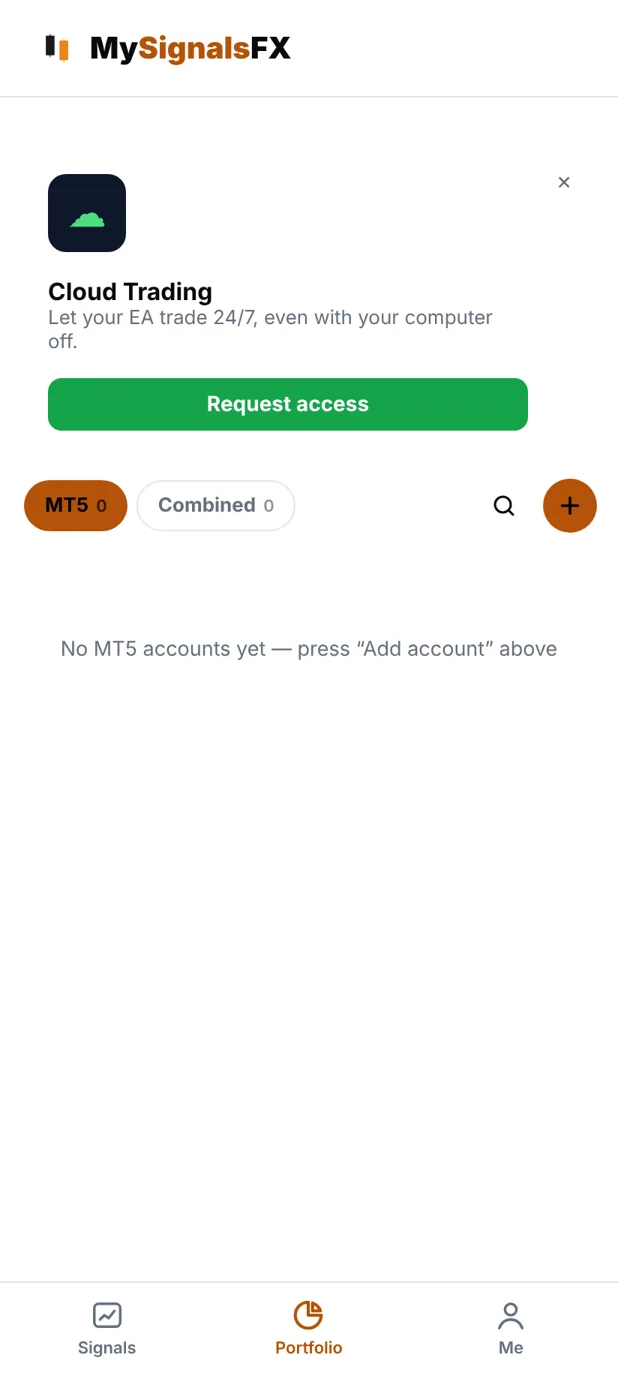
หน้า Portfolio → การ์ด Cloud Trading → แตะ Request access · รอทีมงานเปิดสิทธิ์สักครู่On Portfolio, find the Cloud Trading card and tap Request access. We’ll turn it on shortly.

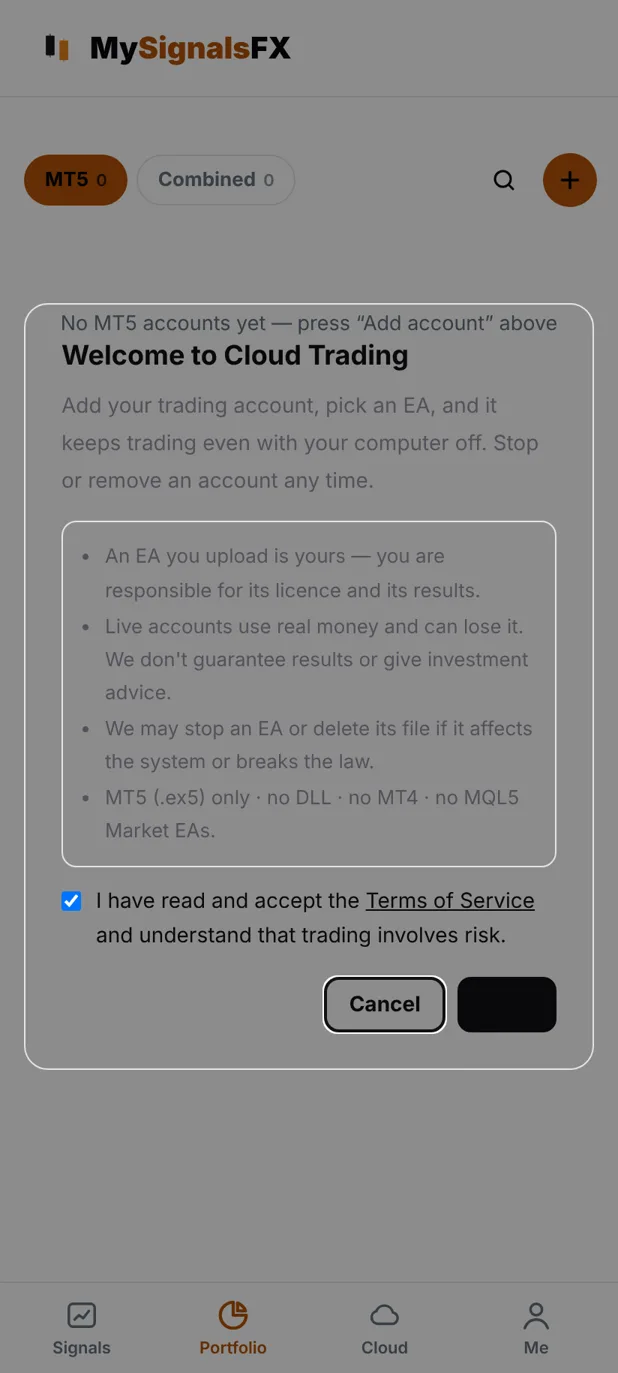
แตะ Open Cloud Trading → ติ๊กช่องยอมรับ → แตะปุ่มมุมขวาล่าง (Start)Tap Open Cloud Trading, tick the box, then tap Start at the bottom right.

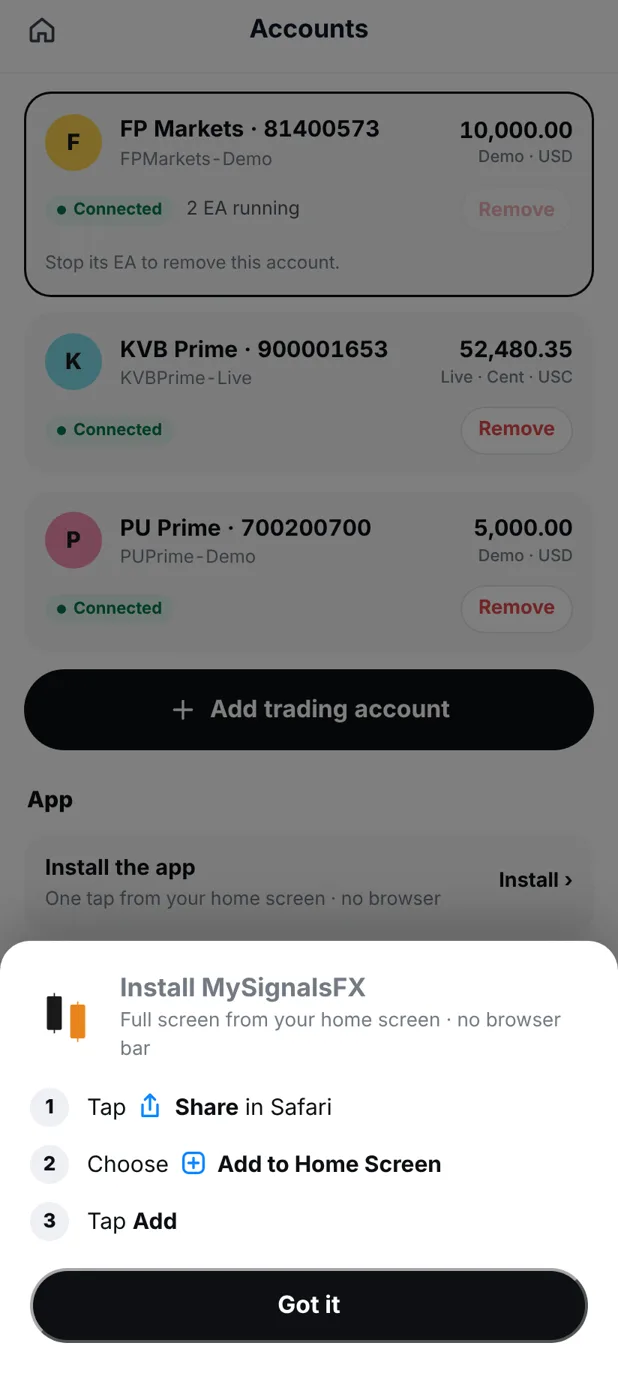
แท็บ Accounts → Install the app · iPhone: Share → Add to Home Screen → Add · Android: InstallAccounts → Install the app. iPhone: Share → Add to Home Screen → Add. Android: Install.

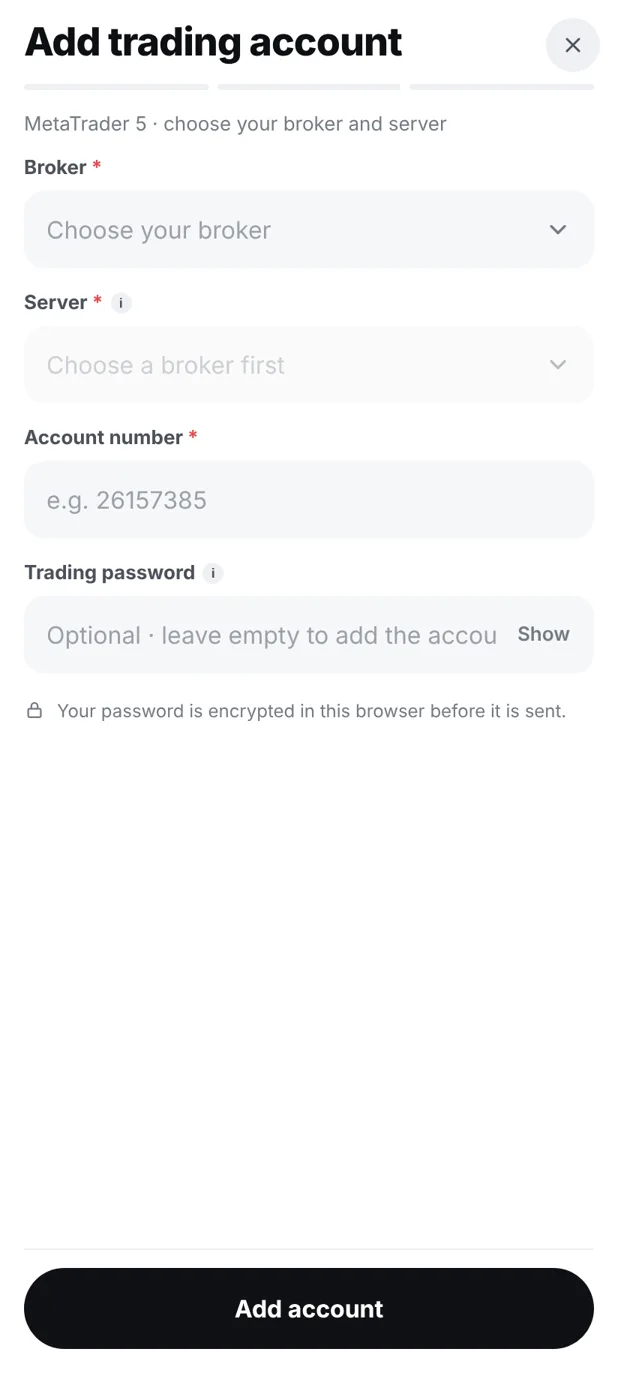
Accounts → Add trading account → เลือกโบรก + เซิร์ฟเวอร์ → เลขบัญชี → รหัสผ่านเทรด → Add accountAccounts → Add trading account → broker and server → account number → trading password → Add account.

ที่หน้า EAs เลือก EA ที่อยากใช้ แล้วแตะ + Add instanceOn EAs, choose an EA and tap + Add instance.

พิมพ์ชื่อสินค้าให้ตรงกับใน MT5 (เช่น XAUUSD.u) → เลือก TF → แตะ Start EAType the symbol exactly as in MT5 (e.g. XAUUSD.u), pick a timeframe, tap Start EA.

ไม่ถึง 1 นาที สถานะเป็น Running · EA ทำงานบนคลาวด์ 24 ชม. · ดูออเดอร์ที่ Trade · ประวัติที่ HistoryIn under a minute it turns Running. Your EA trades in the cloud 24/7 — orders in Trade, past trades in History.


ขั้นที่Step 1 / 8
ตรวจว่าใส่รหัสผ่านเทรดตอนเพิ่มบัญชีแล้ว และบัญชีในแท็บ Accounts ขึ้น ConnectedMake sure you entered your trading password and the account shows Connected under Accounts.
ชื่อสินค้าต้องตรงกับใน MT5 ทุกตัวอักษร รวมตัวต่อท้าย เช่น XAUUSD.u · ดูที่ Market Watch ใน MT5The symbol must match MT5 exactly, including suffixes like XAUUSD.u — check Market Watch.
ไม่ต้อง EA ทำงานบนคลาวด์ ปิดคอมหรือปิดมือถือได้เลยNo. Your EA runs in the cloud — close everything.
อยู่ในบัญชีเทรดของคุณกับโบรกเสมอ เราไม่แตะเงินลูกค้าAlways in your own trading account with your broker. We never touch client funds.
หน้า EAs → แตะ EA ที่รันอยู่ → Overview → Stop EA · ออเดอร์ที่เปิดอยู่ยังอยู่ในบัญชี ปิดเองใน MT5 ได้EAs → tap the running EA → Overview → Stop EA. Open positions stay in your account; close them in MT5.
เปิด Cloud Trading บนมือถือ แล้วทำตาม 8 ขั้นด้านบน · ติดตรงไหนทักทีมงานได้ทุกเมื่อOpen Cloud Trading on your phone and follow the 8 steps. Stuck? Message our team anytime.
เปิด Cloud TradingOpen Cloud Tradingการเทรดมีความเสี่ยงสูง · MySignalsFX เป็นเครื่องมือและผู้แนะนำลูกค้า (IB) ไม่ใช่ที่ปรึกษาการลงทุนTrading involves high risk. MySignalsFX is a tool and introducing broker (IB), not an investment adviser.
สแกนเปิดบนมือถือScan to open on your phone